
RunAsDate: Run Any Program At A Specific Date/Time [Windows]

RunAsDate is a freeware portable application for Windows users.

Developed by NirSoft, RunAsDate allows you to run a program in the date and time that you specify. The program doesn’t change the current system date and time of your computer, instead it injects the date/time that you specify into the desired application. One of the advanced feature offered by this software is it allows you to run multiple applications simultaneously. Each application works with different date and time, while the system date/time remains unaffected. We have covered many useful utilities developed by NirSoft: DevManViewWebSiteSnifferCleanAfterMe, and WhatInStartup.

The developer reports that the mechanism behind RunAsDate is it intercepts the kernel API calls that returns the current date and time (GetSystemTime, GetLocalTime, GetSystemTimeAsFileTime). After that it replaces the current date/time with the date/time that you specify. [Read more...]

Starter: Take Control Over Windows Startup, Services, Processes

Starter is a freeware portable application that functions as a startup manager, Windows service manager and process monitor. It is very small but very powerful in functionality.

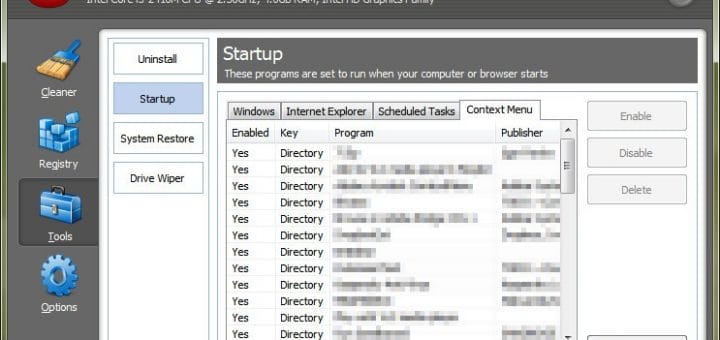
As you go on installing new applications in Windows, some of them are configured to launch themselves when Windows starts up. This slows up the start-up process and you end up hogging your system resources. You can use Starter to remove any unneeded program that is in your startup list so that it doesn’t run on startup any more and you gain back system performance. [Read more...]

Show Detailed (Verbose) Information While Windows Starts/Shutdown [How To]

It is really frustrating when for some reason Windows takes up a lot of time to start-up or shutdown and you have no idea why it is happening. You desperately want to make Windows fast and try out almost all tips available to speed up Windows. But, at-last you still find Windows slow. Slow down a bit and think again as the reason for Windows sluggish response might be hidden during Windows start-up or shutdown.

Now, if Windows would have displayed every details of what it is loading during starting or what it is unloading during shutdown like Linux does, it would have been very easy to find out the cause. Don’t despair as even though Windows may not show you every details but you can ask Windows to display some more detailed information during start-up and shutdown through this simple registry hack. [Read more...]

Boot Snooze: Reboot and then Standby or Hibernate for Faster Startup [Windows]

You want to startup Windows as quickly as possible the next time you start your computer. After all no one wants to wait 3-4 minutes for Windows to completely boot and load all the components. Usually, if you keep your computer in Sleep mode or use the Hibernate feature, then you will notice faster computer boot up. But if you are constantly use this method and start Windows after keeping it into Sleep or Hibernate mode, you will notice that Windows slowly becomes sluggish.

Windows works better when it is completely shutdown and then started up again. If you reboot your computer once, you will find it again fast. This is because when you reboot Windows clears a lot of data from cache files, Windows also applies the pending updates, and programs and services that may have become non-responsive are stopped and then started again. If you want to get the benefits of a reboot and still start quickly out of a hibernation, then there is a little geeky tool to help you. [Read more...]

How To Easily Disable Startup Applications in Windows 7 Temporarily [Quick Tip]

Suppose you want to “super” quickly login to Windows 7 and don’t want to wait for the startup applications to load first. Well, there is a simple way built-in Windows 7 to help you out. This will only temporarily disable your start-up applications from starting up during boot time. The simple and quick tip is as follows: [Read more...]

View/Disable/Enable/Delete Windows Startup Program List With WhatInStartup

Programs that are starting up with Windows System startup affects PC boot time. So it becomes very important to have less number of programs in the Windows startup program list. A regularly optimized startup program list can easily cut PC boot up time, reduce memory and resource load.

You can change the list of applications to start and leave the ones that need more memory at the end of the list so that OS components would load first by applying delay time between loading applications, or you can just use a startup manager and remove or disable unwanted startup entries.

[Read more...]