
Boot Snooze: Reboot and then Standby or Hibernate for Faster Startup [Windows]
You want to startup Windows as quickly as possible the next time you start your computer. After all no one wants to wait 3-4 minutes for Windows to completely boot and load all the components. Usually, if you keep your computer in Sleep mode or use the Hibernate feature, then you will notice faster computer boot up. But if you are constantly use this method and start Windows after keeping it into Sleep or Hibernate mode, you will notice that Windows slowly becomes sluggish.
Windows works better when it is completely shutdown and then started up again. If you reboot your computer once, you will find it again fast. This is because when you reboot Windows clears a lot of data from cache files, Windows also applies the pending updates, and programs and services that may have become non-responsive are stopped and then started again. If you want to get the benefits of a reboot and still start quickly out of a hibernation, then there is a little geeky tool to help you.
Boot Snooze is a freeware portable application that combines the benefits of a complete Windows system reboot and boot quickly out of sleep or hibernation.
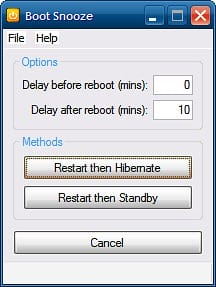
After download, start Boot Snooze and then click on the “Restart then Standby” or “Restart then Hibernate” button. Your computer will automatically shutdown, and restart again, and then will display a small dialog box with a countdown timer, and then go into standby or hibernate mode. The timer displayed allows you to change your mind if you need to and stop the Standby or Hibernate process. Now, the next time when you start using your computer again, it will be faster than when you do a cold boot.
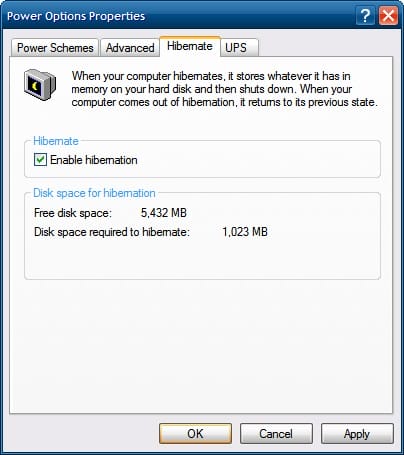
Note: For hibernation to work, your computer must have “Enable hibernation” already checked under your Control Panel > Power Options > Hibernate tab.
Do you have any tip or application which you use to speed up computer boot times? Share with us below in the comments! :)