
Secure Migration to Windows 7 with Handy Backup

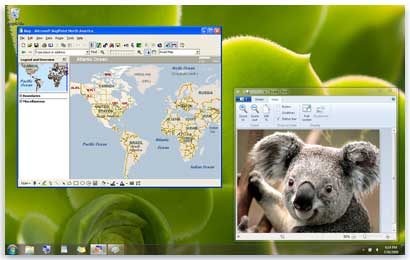
logo_1Just released Windows 7 flooded Internet with reports on the new operating system installation, discussions and Windows 7 installation tips. Microsoft guys learned from mistakes of Windows Vista and have made every effort to please everybody with this newly fledged operating system. And it must be said, it is quite successful – reviews entirely positive, everybody is happy and in a hurry to share impressions from the installation and operation. Windows 7 corrected many well-known Vista issues as the annoying User Access Control (UAC) and the compatibility problems with several hardware components in Windows 7, and they also added useful additional functions to Windows Aero.

Everybody knows that installing a new operating system always requires attention, careful preparation and planning. Frequent cases of irretrievable loss of data takes place when moving or upgrading from one operating system to installing of a new operating system. Regardless of whether you have already managed to install a new system or just want, in your best interest to remember about data security. Handy Backup is award-winning data backup and disaster recovery software, which will help to secure a migration to Windows 7, and then insure your already installed Windows 7 against loss of data. [Read more...]

Quick Tip: Speed Up Windows 7 Aero

Many of us like the transparent glass effect in Windows 7, it looks very nice. But those of you who are using Windows 7 on computers running an underpowered graphics adapter or on Netbooks with low graphics power will see a performance hit when transparent glass effect is enabled. Having the Aero Glass effect enabled causes slow and choppy animation effects even when you do simple tasks like moving around windows on your screen.

Some may advice you to disable Aero all together to get performance benefits but I will suggest a simple way by which you can get the performance benefits without disabling Aero altogether and voiding yourself from getting the other benefits of Aero, such as Flip 3D, Animations and Taskbar thumbnails. You can get all these benefits and some performance gains by only disabling the transparent glass effect. To disable the transparent glass effect follow the simple steps below: [Read more...]

How To Install & Use Windows XP Mode in Windows 7

xpmodeWindows XP Mode is freely available for Windows 7 Professional, Ultimate and Enterprise users. It allows you to run legacy applications inside a Windows XP virtual machine running in the background. Windows XP Mode was primarily designed to help businesses move from Windows XP to Windows 7. Almost all programs that are compatible with Windows Vista and a majority of Windows XP programs, run well in Windows 7. But, if a program doesn’t run properly even after trying the Program Compatibility troubleshooter, you can run the program in Windows XP Mode.

Windows XP Mode runs in a separate window on the Windows 7 desktop, much like a program, except it’s a fully functional version of Windows XP. When you install a program in Windows XP Mode, the program appears in both the Windows XP Mode list of programs and in the Windows 7 list of programs, so you can open the program directly from Windows 7. Do note that it isn’t optimized for graphic-intensive programs such as 3D games or for programs with hardware requirements such as TV tuners. [Read more...]

How To Use Any Version of Windows 7 For 120 Days Free

Microsoft allows anyone to install and use any version of Windows 7 for 30 days without having to enter an activation key. But you can officially extend this trial for 120 days or 4 months by using a utility that is supplied by Microsoft only. This utility is called the Software License Manager (slmgr) and it gets installed with default Windows 7 installation.

To see how many days are left for your trial version of Windows 7, click Start, right-click Computer, and choose Properties. At the bottom of the screen under Windows Activation, you’ll see the number of days left in your trial period. [Read more...]

How to Disable or Turn Off CD or DVD Burning Support and Stop Disc Tray from Auto Eject in Windows 7

Windows 7 like Vista and XP inherits supports disk burning feature. This will come handy when you are not having any 3rd party disk burning software installed. If you are having a CD-DVD burning software like Nero or other similar applications installed then it makes sense in disabling the in-built CD/DVD burning support. This will free up some resource also.

Windows 7 automatically ejects the drive tray when a user double-clicks on the optical drive icon in Windows Explorer or when a user single-clicks on the optical drive icon in the File Save or File Open dialog box if it can’t find any disk inside. There are two ways to disable this built-in feature. First one involves the Group Policy Editor and the second one is a registry hack. [Read more...]